
How to prove which version of a document you sent
Most document disputes aren't about whether a file exists. They're about which version: the quote with the old price, the contract before the last edit. Here's how to keep proof of every version you send, in order, without storing the files anywhere new.
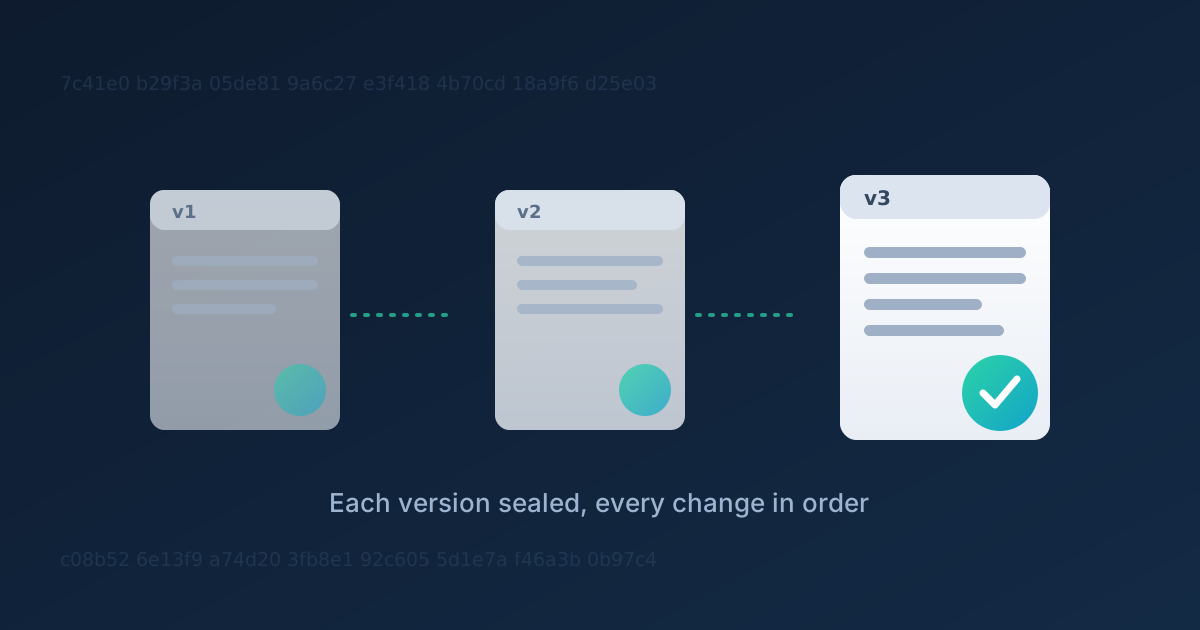
Most document disputes aren't about whether a file exists. They're about which file. The client remembers the quote at 4,000 euros; you sent the revised one at 4,800. The supplier says the delivery terms changed after they signed; you're sure they didn't. Both sides have a folder full of drafts called contract_final, contract_final_v2 and contract_final_v2_checked, and every one of them can be opened, edited and saved again with a fresh date.
What settles that kind of argument isn't a better filename. It's evidence that a specific version existed in an exact form at a specific time, and that it came before or after another one. This guide shows how to keep that evidence for every version you send, with nothing more than the files you already have.
Why version history in your tools isn't proof
Shared drives and document editors keep a revision history, and it's genuinely useful day to day. As evidence, it has two weaknesses. First, it lives inside a system you or your organisation control: an administrator can restore, delete or rename revisions, and the other side has no way to check that the history wasn't tidied up afterwards. Second, it records the document in the editor, not the exact file that left your hands. The PDF you exported and emailed on Tuesday is a separate artefact, and once it's out there nothing ties it back to a revision number.
Email timestamps help a little, but they prove that a message with an attachment was sent. If the attachment is later questioned, you're back to comparing two files that look the same and arguing about which one is genuine.
What proof of a version actually needs
To prove which version you sent, you need four things, and none of them requires keeping the document anywhere new:
- The exact content. A SHA-256 hash of the file is a fingerprint that changes completely if a single character, pixel or hidden metadata field changes. If the hash of the disputed copy matches your record, it's the same file, byte for byte.
- A trusted time. A UTC timestamp bound to that hash shows the file existed in that form at that moment.
- A record nobody can quietly rewrite. A digital signature over the hash and timestamp means the record can't be edited after the fact without the edit being detectable.
- The order of versions. When a document goes through revisions, each version's record should point to the one it replaces, so the history reads as a chain rather than a pile of unrelated files.
The first three are what a seal is; our guide on proving a document hasn't been altered explains how they fit together. The fourth is what turns a set of seals into a version history.
Seal each version at the moment you send it
The habit is simple: whenever a version leaves your hands, a quote to a client, a contract for signature, a report to a regulator, seal that exact file first. On XSeal you choose the file, the SHA-256 hash is computed, and you get back a certificate with a Seal ID, a UTC timestamp and an Ed25519 signature. The file is hashed in memory and never stored, so sealing a confidential contract doesn't hand its contents to anyone.
When the document changes and you send it again, don't start a new, unrelated seal. Open the original seal in your dashboard, choose the Revised file and press Seal new version. The new seal records which seal it replaces, and the Versions list on each seal's page shows the whole history in order. If you pick a file that is byte-for-byte identical to the current version, XSeal refuses it, because a version that didn't change isn't a new version. Each version is a full seal with its own certificate, so every one of them can be checked on its own.
Showing the other side which version they received
Proof only helps if the other party can check it without taking your word for it. Every seal has a public verification page at /verify/<Seal ID>, and the seal's page in your dashboard has a Copy verification link button. Send that link along with the document. Anyone can open it, upload their copy of the file and see whether it is the sealed version; no account is needed. If they upload the old quote against the new version's seal, it comes back altered, which is exactly the point: the record shows which file was sealed when, and the versions list shows what came before and after it.
For a dispute that reaches a lawyer or an auditor, the certificate can also be checked independently with XSeal's published public key, using any standard crypto library, so nobody has to trust the website at the moment they verify. The documentation walks through that check step by step.
What a sealed version does and doesn't prove
Be precise about the claim, because over-claiming is the fastest way to lose an argument. A sealed version proves that this exact file existed at this time, and the version chain proves the order in which you sealed revisions. It does not prove that the recipient opened or read the file, and it isn't a qualified electronic signature identifying who agreed to it. For consent, pair it with an e-signature; for delivery, keep the email or portal receipt. The seal fills the gap those leave: it shows that the file in the email is the one you say it is.
A routine that takes seconds
- Seal the file at the moment it is sent, not when the dispute starts.
- Seal each later revision as a new version of the same seal, so the order is recorded.
- Send the verification link with the document, so the recipient can check their copy.
- Keep your own copy of every sealed version; XSeal stores only the fingerprints, not the files.
- Download the certificate for anything that matters, so it can be verified offline years later.
Freelancers run into version disputes more than anyone: a quote revised three times, a scope document changed after a call. If you work that way, the Online Money Blog's guide to starting as a freelancer covers contracts and getting paid; sealing each version you send is the small step that makes those documents hold up later.
Try it on two versions of one file
The quickest way to see it work: seal a file, change one line, and seal the edited file as a new version from the dashboard. Then upload the first file against the second seal and watch it come back altered. The free plan includes 25 seals a month, and each version counts as one; the pricing page lists the plans for heavier use.